





The SharePoint Recycle Bin is a crucial feature that helps organizations manage deleted items in SharePoint. It provides an essential layer of data protection, allowing users to recover files accidentally removed from the system.
Data retention and backup are vital for maintaining business continuity. SharePoint environments store large volumes of valuable data, and the SharePoint Recycle Bin ensures that this data is never permanently lost.
But where is the SharePoint Recycle Bin? It's easily accessible from the SharePoint site, allowing users to view and restore deleted items within a set period.
Centric specializes in SharePoint consulting, helping businesses optimize their SharePoint environments. It ensures that your SharePoint Recycle Bin is effectively configured for seamless data recovery and protection, enhancing overall business productivity.
What is the SharePoint Recycle Bin?
The SharePoint Recycle Bin is a built-in feature that temporarily stores deleted items in SharePoint. Its primary function is to help recover files and documents that were accidentally removed.
The Recycle Bin in SharePoint provides a safety net for deleted data, allowing users to restore files within a specific timeframe. This helps prevent data loss and ensures that important information can be recovered.
Where is the SharePoint Recycle Bin? It’s easily accessible from the SharePoint site, making it simple for users to view and restore deleted items. The link appears within site contents alongside tools used to build SharePoint pages, providing a consistent and familiar navigation experience.
Unlike other Microsoft 365 backup options, the SharePoint Recycle Bin only holds deleted items for a limited time (typically 93 days). Other backup solutions offer more extended protection and restore capabilities beyond this window.
Explore Our SharePoint Consulting Services!
How the SharePoint Recycle Bin Works?
The SharePoint Recycle Bin provides an easy way to recover deleted items within a specific time frame. Knowing how it works is essential to ensure data protection and efficient recovery.
If you’re wondering about the SharePoint Recycle Bin location, it’s easy to find directly within your SharePoint site. You can access it through the settings or site contents page. The SharePoint Recycle Bin serves as the first stop for restoring deleted files, offering a simple way to recover lost documents without needing external backups.
Stages of the SharePoint Recycle Bin
Before we dive into the stages, it’s important to know how the SharePoint Recycle Bin is structured. It works in two stages: the User Recycle Bin and the Site Collection Recycle Bin. These stages help ensure that deleted items are recoverable within a given time, allowing users to retrieve files with ease.
Stage 1: The User Recycle Bin
The SharePoint Recycle Bin holds deleted items in Stage 1 for up to 93 days. During this period, users can easily restore any deleted files.
How to access the SharePoint Recycle Bin: You can find the deleted items in the SharePoint recycling bin. Simply go to the site’s Recycle Bin, and you’ll see a list of the items you’ve deleted within the last 93 days.
If you need to restore a file, select the item and click “Restore.” The file will return to its original location within the SharePoint site, just as it was before deletion.
Stage 2: The Site Collection Recycle Bin
If items are deleted from Stage 1, they move to the Site Collection Recycle Bin. Understanding what is a sharepoint site collection helps clarify why only site collection admins can access this level—because it represents the broader container that governs sites, permissions, and deeper recovery options. This is the second stage of recovery and is still part of the 93-day retention period.
Restoring items from Stage 2 follows the same process as Stage 1. However, only site collection admins can access this bin, giving them the ability to restore deleted files after they’ve been moved from the User Recycle Bin.
How are items permanently deleted?
After the 93-day period, items are permanently deleted from both stages of the SharePoint Recycle Bin. Once this happens, files cannot be recovered, which is why it’s essential to restore any necessary items within the retention period.
This ensures that SharePoint maintains storage space while also offering a safety net for recovering deleted files if needed.
Explore Our SharePoint On-Premises Intranet Solutions!
3 Key Features of the SharePoint Recycle Bin
The SharePoint Recycle Bin provides several key features that make it a vital tool for managing deleted items. For organizations comparing Power Pages vs SharePoint, the Recycle Bin highlights SharePoint’s advantage in built-in file recovery and data protection capabilities.
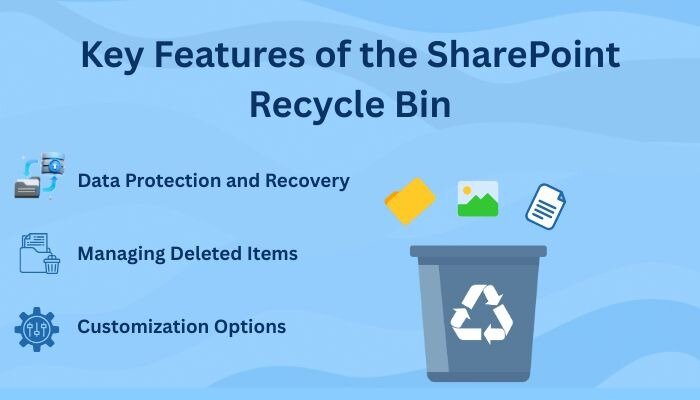
It helps users recover lost files, provides data protection, and supports disaster recovery efforts. Below, we will explore some of the main features that ensure effective data management and protection in SharePoint.
1. Data Protection and Recovery
The SharePoint Recycle Bin is an essential part of SharePoint’s built-in data protection system. It allows users to recover deleted items within a set retention period, reducing the risk of data loss. As part of broader sharepoint document management practices, the Recycle Bin adds an extra safeguard to ensure that critical files can be restored without relying solely on external backup solutions.
The SharePoint Recycle Bin is a critical element in disaster recovery. It ensures that any accidental deletion of important files can be undone, offering an extra layer of security to the organization’s data.
Where is the Recycle Bin in SharePoint? You can easily find the SharePoint trash by going to the site settings or the Site Contents page. This location gives you quick access to the deleted items, allowing you to restore them back to their original location.
2. Managing Deleted Items
Managing deleted items in the SharePoint Recycle Bin is simple. Once an item is deleted, it goes into the Recycle Bin where users can view and restore it. This includes items created through SharePoint forms, which can also be recovered easily as long as they remain within the retention period.
Wondering how to find the Recycle Bin in SharePoint? From the Site Contents page, click on the "Recycle Bin" link. Here you can see all the deleted items within the retention period. To restore an item, select it and click "Restore."
Tips on Avoiding Common Mistakes with Item Restoration:
-
Always double-check before restoring to avoid bringing back unwanted files.
-
Regularly empty the Recycle Bin to maintain a clean and organized environment.
-
Be mindful of the 93-day retention period—items deleted after that cannot be restored.
3. Customization Options
The SharePoint Recycle Bin allows for limited customization, but it is an important tool for data retention management. While the Recycle Bin itself cannot be customized like sharepoint web parts, it still integrates effectively with broader site configurations and governance policies. Organizations can set up retention policies and backup strategies that work alongside the Recycle Bin to ensure data protection.
For example, admins can define which types of documents to keep and for how long, ensuring that the Recycle Bin aligns with organizational policies. However, customizations for the Recycle Bin itself are limited, with more advanced management typically handled by third-party solutions.
This gives SharePoint users control over data retention, ensuring that they can manage and recover deleted files effectively within their specific business needs.
2 Best Practices for Using the SharePoint Recycle Bin
The SharePoint Recycle Bin is an essential tool for managing deleted items. To ensure that it functions effectively, it’s important to follow best practices for regular monitoring, cleanup, and backup. These steps will help maintain the performance of your SharePoint environment and prevent unnecessary data loss.

1. Regular Monitoring and Cleanup
Monitoring the SharePoint Recycle Bin regularly is crucial to prevent unwanted data from accumulating. Keeping the Recycle Bin clean helps optimize SharePoint performance.
Don’t know how to access the Recycle Bin in SharePoint? Simply go to the Site Contents page, and you will find the SharePoint trash bin link. From here, you can review and manage deleted items.
Tips for cleaning up the Recycle Bin:
-
Regularly check for items that are no longer needed and delete them permanently to free up space.
-
Set reminders to clean out the Recycle Bin every 30 days to avoid unnecessary clutter.
-
Restore only the items you truly need to avoid restoring unnecessary files.
2. Establishing Backup Policies
Establishing comprehensive backup policies is vital for safeguarding SharePoint data. While the Recycle Bin serves as a temporary recovery layer, organizations still require a dependable sharepoint backup strategy to ensure long-term protection and restore capabilities beyond the standard retention window.
A backup policy should define how long to keep data in SharePoint and how to handle deleted items. Regular backups should be scheduled to protect valuable content and prevent data loss.
Discuss the role of third-party tools: While the SharePoint Recycle Bin serves as a first line of defense, third-party backup tools can provide enhanced capabilities. These tools can offer longer retention periods, automatic backups, and even off-site storage for additional security.
Explore Our SharePoint Document Management Services!
Advanced SharePoint Recycle Bin Management
Managing the SharePoint Recycle Bin effectively is crucial for larger environments. Advanced management strategies ensure that data deletion and restoration are handled smoothly, keeping the system organized and performing well.
1. Integrating with Other Microsoft 365 Features
The SharePoint Recycle Bin works seamlessly with other Microsoft 365 services like OneDrive and Teams. When users explore what is the difference between onedrive and sharepoint, they often discover that deleted items from synced libraries or Teams channels still route into the SharePoint Recycle Bin, ensuring centralized recovery across platforms. When you delete files from these platforms, they also appear in the SharePoint Recycle Bin if they are associated with a SharePoint site.
For example, if a user deletes a file from a Teams channel linked to SharePoint, it goes to the SharePoint Recycle Bin. This reflects how Microsoft Teams SharePoint integration streamlines collaboration and ensures deleted items remain recoverable within the same centralized system. This integration helps centralize data recovery and keeps everything in one place for easier management.
2. Handling Large-Scale Data Deletions
In large SharePoint environments, data deletions can become overwhelming. The Recycle Bin on SharePoint can quickly fill up, making it essential to have a strategy in place to manage these deletions. Users who understand how to sync sharepoint to file explorer often find it easier to track changes and avoid accidental deletions because synced folders provide clearer visibility into live file states.
Strategies for managing large-scale deletions:
-
Regularly audit your SharePoint Recycle Bin to identify and clean up unnecessary items.
-
For critical data, implement version control to prevent accidental deletions.
-
Consider using automated scripts to periodically clean up or move files to long-term storage solutions.
3. Automating Data Management
Automating the cleanup and management of the SharePoint Recycle Bin can save time and reduce human error. With modern capabilities powered by SharePoint AI, organizations can automatically classify deleted content, trigger cleanup workflows, and improve retention accuracy without heavy manual intervention.
Tools and techniques for automating the cleanup:
-
Use Power Automate to create workflows that automatically delete items after a set period or move them to an external storage solution.
-
Leverage third-party tools that offer automated Recycle Bin management, including customized retention policies.
-
Set up alerts to notify admins when items are nearing the end of their retention period to ensure timely cleanup.
By automating these tasks, organizations can ensure their SharePoint Recycle Bin stays organized and that resources are used efficiently.
Explore Our SharePoint Document & Content Management Services!
Troubleshooting SharePoint Recycle Bin Issues
The SharePoint Recycle Bin is generally reliable, but like any system, it can encounter issues. Understanding common problems and how to fix them is crucial to ensuring smooth data management and recovery.
Common Issues with the SharePoint Recycle Bin
Some common issues with the SharePoint Recycle Bin include:
-
Item Restoration Failures: Sometimes, deleted items cannot be restored, even though they are in the Recycle Bin.
-
Delayed Deletions: Files may take longer than expected to appear in the Recycle Bin or be permanently deleted after the retention period ends.
-
Missing Files: Occasionally, deleted files may not show up in the SharePoint Recycle Bin due to sync issues or permissions.
How to Resolve SharePoint Recycle Bin Problems
Here are some solutions for the most frequent SharePoint Recycle Bin problems:
-
Item Restoration Failures: Ensure the item is still within the 93-day retention period. If it’s stuck, try refreshing the Recycle Bin page or using a different browser.
-
Delayed Deletions: Check if there are any ongoing sync issues between SharePoint and other Microsoft 365 services like OneDrive. Try clearing the browser cache or waiting for the next sync cycle.
-
Missing Files: Ensure you have the correct permissions to access the SharePoint Recycle Bin. If the file still doesn’t appear, check the Site Collection Recycle Bin, where deleted items are moved after Stage 1.
Frequently Asked Questions
What is the SharePoint Recycle Bin?
The SharePoint Recycle Bin temporarily stores deleted items, allowing users to restore files within a 93-day retention period. It provides an essential layer of data protection, ensuring that accidentally deleted files can be recovered without permanent loss.
How do I access the SharePoint Recycle Bin?
To access the SharePoint Recycle Bin, go to the Site Contents page on your SharePoint site. You'll find the Recycle Bin option, where you can view and restore deleted items within the allowed retention period of 93 days.
What happens when items are permanently deleted from SharePoint?
After 93 days, items in the SharePoint Recycle Bin are permanently deleted. They cannot be restored from the Recycle Bin once the retention period ends. It's important to restore any needed files before they are permanently removed from the system.
Can I customize the SharePoint Recycle Bin?
While the SharePoint Recycle Bin offers limited customization, admins can manage retention policies and use third-party tools for enhanced backup and data retention. Customization options are mainly focused on optimizing recovery processes and retention time for deleted items.
Conclusion
The SharePoint Recycle Bin plays a vital role in managing and protecting SharePoint data. It provides an easy way to recover deleted items, ensuring that valuable data is not lost. By offering a temporary storage solution for deleted files, the SharePoint Recycle Bin helps businesses maintain data integrity and minimize the risk of data loss. It is an essential part of an organization’s disaster recovery strategy. Centric specializes in SharePoint consulting, helping organizations optimize their SharePoint Recycle Bin and data retention strategies. It ensures that businesses can effectively manage their data and recover files when needed, reducing the risk of data loss and maximizing productivity.