



Microsoft ended support for SharePoint Server 2016 and 2019 on July 14, 2026. Farms on those versions no longer get security updates or Microsoft support, and there is no paid extension. The supported options are SharePoint Online, SharePoint Server Subscription Edition for content that must stay on your own servers, or a hybrid of both. The right one depends on your farm.
If your organization still runs SharePoint 2016 or 2019, the question is no longer whether to move. It's which path suits the farm you actually have. A plain document farm, a farm full of InfoPath forms and a farm holding regulated records each need a different plan.
This guide works through six common farm situations, with the signs you're in each one, the risk right now, the path that fits, the first steps, and what to watch for. A decision tree and a downloadable checklist help you classify your own farm.
What Ended in 2026
Two deadlines landed this year. On April 2, 2026, Microsoft removed SharePoint 2013 workflows from all existing SharePoint Online tenants, with no option to extend. Then on July 14, 2026, SharePoint Server 2016 and 2019 reached end of support, together with InfoPath 2013, SharePoint Designer 2013 and Project Server 2016 and 2019.
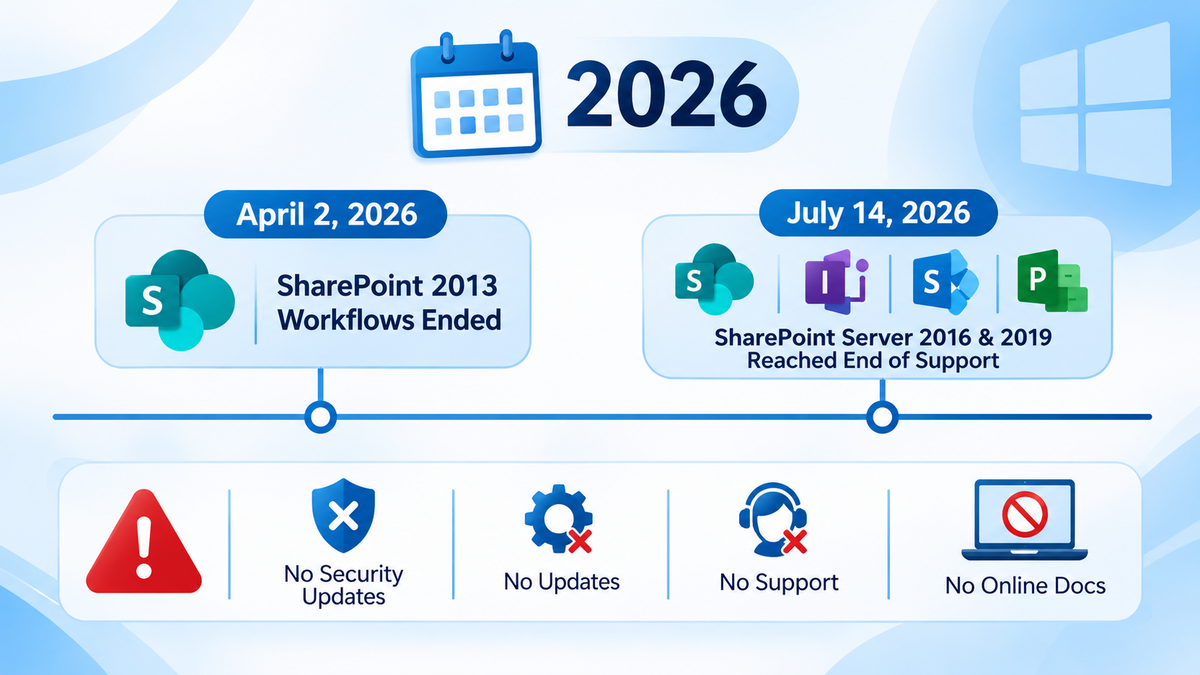
End of support is a hard stop. Microsoft's lifecycle policy means no new security updates, no non-security updates, no free or paid assisted support and no updates to its online technical content for those products. The farm keeps running, but any vulnerability found after July 14, 2026 stays unpatched.
Six Farm Situations, and the Right Path for Each
A farm can fit more than one of these situations. Each is an illustrative situation based on Centric's SharePoint migration services, not a client story. Read the signs, find yours, and use the path as your starting point.
1. The Standard Document Farm
In one line: team sites and document libraries with light customization, and no reason for the content to stay on your own servers.
- Signs you're here: most sites are team sites and libraries; customization is limited to a few web parts and views; nobody has a policy reason to keep the files on-premises.
- The risk now: everyday business files sit on a system that no longer gets security fixes.
- The right path: SharePoint Online.
- First steps: clean out redundant, outdated and duplicate content before you move it; map old sites to the new structure; run a pilot with one department; then move in batches. Microsoft's free SharePoint Migration Tool and Migration Manager cover most moves of this kind, and both copy rather than move, so the source stays intact until you retire it.
- Watch out for: permissions. Copying them as they are carries years of oversharing straight into Microsoft 365, where search and Copilot will surface whatever people can open.
- How Centric helps: our SharePoint migration and integration team moves sites, libraries, lists, version history and permissions into SharePoint Online and rebuilds classic pages as modern pages where it helps. If you're still weighing the move itself, see why migrate to SharePoint Online.
2. The Farm Full of InfoPath Forms and 2013 Workflows
In one line: approvals, request forms and routing were built years ago in InfoPath and SharePoint Designer, and people still depend on them every day.
- Signs you're here: expense or purchase approvals, leave requests or document routing run on InfoPath forms or SharePoint 2010 and 2013 workflows; the people who built them may have left.
- The risk now: InfoPath 2013 and SharePoint Designer 2013 are also out of support, and SharePoint 2013 workflows no longer run in SharePoint Online. Copy this farm to the cloud as it is and the processes stop on day one.
- The right path: rebuild the processes, then move to SharePoint Online.
- First steps: inventory every form and workflow, who still uses it and how often; retire the ones nobody needs; rebuild the rest in Power Apps and Power Automate before or alongside the content move. For workflows already in Microsoft 365, Microsoft's Microsoft 365 Assessment tool reports every 2013 workflow and how easily each converts to Power Automate.
- Watch out for: moving content first and fixing processes later. People lose their approvals in the gap, and workarounds by email take hold.
- How Centric helps: our team lists every workflow, form, add-in and connection that depends on the old farm, then rebuilds the ones still in use in Power Automate, Power Apps and SPFx through our SharePoint development and customization service. For background, see what a SharePoint workflow is.
3. The Regulated or Data-Residency Farm
In one line: some content must stay on your own servers because a regulation, contract or internal policy says so.
- Signs you're here: legal, compliance or a customer contract requires certain records to stay in your own data center; the rest of the farm has no such restriction.
- The risk now: your most sensitive content sits on unsupported software.
- The right path: SharePoint Server Subscription Edition for the content that must stay, connected to SharePoint Online in a hybrid setup for everything else.
- First steps: separate what must stay from what can move; plan the upgrade, which Microsoft supports from 2016 and 2019 using the database-attach method (you build a new Subscription Edition farm, copy the content and service databases, and attach them; the databases must first be at version 16.0.4351.1000 or later); set up hybrid search and single sign-on.
- Watch out for: treating Subscription Edition like the versions before it. It uses subscription licensing and stays supported only while you keep installing its regular updates, so plan for ongoing patching. One upside: SharePoint 2013-style workflows remain supported on Subscription Edition after July 2026, while 2010-style workflows do not.
- How Centric helps: when content must stay on-premises for regulatory or data-residency reasons, we upgrade the farm to Subscription Edition and connect it to SharePoint Online, so one search box finds content in both and people sign in once with Microsoft Entra ID.
Still On SharePoint 2016 Or 2019?
Centric moves out-of-support farms to SharePoint Online, Subscription Edition or a hybrid setup, and rebuilds the workflows and forms that depend on them, as an ISO/IEC 27001:2022 certified team.
Book Your Discovery Meeting!4. The Farm Woven into Business Systems
In one line: ERP, CRM or custom applications read from or write to SharePoint, and moving the farm without them breaks the business processes around it.
- Signs you're here: documents are generated or filed by line-of-business systems; scheduled jobs or custom apps call SharePoint; single sign-on and service accounts are tied to the farm.
- The risk now: every integration is another way in to an unsupported system, and every one of them can fail silently if the farm moves without it.
- The right path: a phased hybrid move, system by system.
- First steps: map every connection and the system on the other end; decide each one's new home; move the content and its integrations together, one business system at a time, testing each before the next.
- Watch out for: a single big-bang cutover with untested integrations. See planning downtime for a SharePoint migration and common SharePoint migration risks.
- How Centric helps: content is only half of a migration. Our migration and integration team lists every connection that depends on the old SharePoint, then rebuilds or reconnects it, including Teams, Power BI and business systems, so people can work from day one.
5. The On-Premises Intranet
In one line: the company intranet, with its news, policies and quick links, still runs on SharePoint 2016 or 2019 with custom branding.
- Signs you're here: the home page every employee lands on is a classic SharePoint page with custom master pages or web parts; updates depend on one or two people who know how it was built.
- The risk now: a system staff rely on for news, policies and links no longer gets security fixes, and its custom branding won't carry over to modern SharePoint as it is.
- The right path: a modern SharePoint Online intranet.
- First steps: decide what the intranet is for today and who it serves; rebuild on modern pages and hub sites rather than copying classic pages; migrate only current news, policies and documents, and archive the rest.
- Watch out for: recreating the old design page by page. You inherit the old navigation problems along with the look. See migrating a legacy intranet to SharePoint Online.
- How Centric helps: our SharePoint Online intranet team designs and builds modern intranets, and Centric's SharePoint Intranet Portal gives you a ready-made starting point.

6. The Farm Nobody Owns
In one line: years of sites, unclear owners and broken permission inheritance, and nobody is sure what's still used.
- Signs you're here: site owners have left; storage keeps growing; nobody can say which sites matter; permissions were granted to individuals rather than groups.
- The risk now: moving everything copies the clutter, and the risk, into Microsoft 365.
- The right path: assess and clean up first, then SharePoint Online for what's still needed and an archive for the rest.
- First steps: find or appoint an owner for every site; flag sites with no recent activity; archive or delete what nobody claims; then plan the move for what remains.
- Watch out for: treating the migration as a copy job. It's the best chance you'll get to clean up. Start with a pre-migration assessment.
- How Centric helps: we start by reviewing your current sites, content, permissions and integrations, then plan the move around what the business actually uses. For a step-by-step list, see our SharePoint migration checklist.
Which Path Fits Your Farm?
Start by assessing and cleaning up, whatever kind of farm you have. Then three questions settle the path: must some content stay on your own servers, do business systems depend on the farm, and are processes built in InfoPath or 2013 workflows?
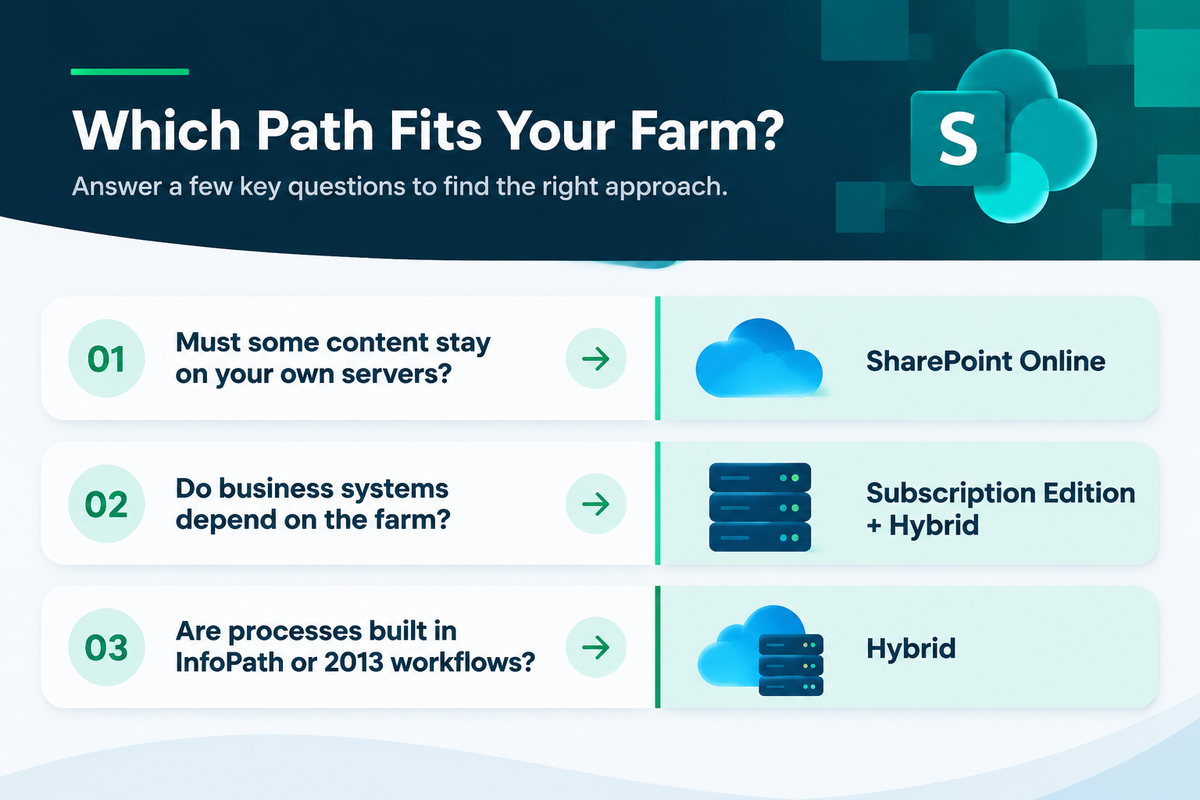
Choose a path for each part of the farm rather than one path for everything. A farm can split, with most content moving online and a regulated core on Subscription Edition.
|
SharePoint Online |
Subscription Edition |
Hybrid |
|
|
Suits |
Content with no reason to stay on-premises |
Content that must stay on your own servers |
Farms with both kinds of content, or a staged move |
|
What you commit to |
Microsoft runs and updates the platform |
Running the farm and installing regular updates to stay supported |
Running both, with one search and one sign-in |
|
What to rebuild |
InfoPath forms, 2013 workflows, farm solutions |
InfoPath forms and 2010 workflows; 2013-style workflows can stay |
Depends on what lands where |
|
Move method |
Migration tools, in batches after a pilot |
Database-attach upgrade to a new farm |
Both, in phases |
For a fuller comparison of cloud and server SharePoint, see SharePoint Online vs on-premises.
How Centric Handles a Post-Deadline Farm
Whichever path fits, Centric's SharePoint team follows the same order of work:
- Assess. We review your current sites, content, permissions and integrations. Centric's SharePoint pages put a typical pre-migration assessment at 2 to 6 weeks, depending on the environment.
- List every dependency. Every workflow, form, add-in and connection that depends on the old farm goes on one list with an owner, because content is only half of a migration.
- Rebuild what's retired. SharePoint 2010 and 2013 workflows, InfoPath forms and add-ins that are still in use are rebuilt in Power Automate, Power Apps and SPFx.
- Pilot, then move in batches. A pilot first and migration in batches keep the timeline predictable. Centric's pages put small file-share or site migrations at about 2 to 4 weeks and enterprise migrations with many sites, custom workflows and integrations at about 2 to 6 months, with most of the time going into assessment, cleanup and testing rather than copying files. See how long a SharePoint migration takes.
- Keep what must stay, and connect it. Where content has to stay on-premises, we upgrade to Subscription Edition and connect it to SharePoint Online so people search once and sign in once.
Not Sure Which Situation Your Farm Is In?
Ask for a SharePoint migration assessment: Centric reviews your farm and comes back with the path, the tools and a plan.
Request A Migration Assessment!Frequently Asked Questions
When did support for SharePoint 2016 and 2019 end?
On July 14, 2026. InfoPath 2013, SharePoint Designer 2013 and Project Server 2016 and 2019 reached end of support on the same day.
Can we pay Microsoft for extended support?
No. After end of support, Microsoft provides no security updates, no non-security updates and no free or paid assisted support for these versions. The supported options are SharePoint Online or SharePoint Server Subscription Edition.
Can we upgrade 2016 or 2019 directly to Subscription Edition?
Yes. Microsoft supports upgrading from SharePoint Server 2016 and 2019 to Subscription Edition with the database-attach method: you build a new Subscription Edition farm, copy the content and service application databases, and attach and upgrade them. The databases must be at version 16.0.4351.1000 or later first.
What happens to our InfoPath forms?
InfoPath 2013 is out of support, so plan to rebuild the forms you still use, usually in Power Apps, with Power Automate handling the approvals and routing behind them. Retire the forms nobody uses rather than rebuilding them.
Is SharePoint Online our only option?
No. If some content must stay on your own servers, SharePoint Server Subscription Edition is the supported on-premises version, and it can run alongside SharePoint Online in a hybrid setup. A farm can be split by content: online for most, Subscription Edition for what has to stay.
Final Thoughts
End of support doesn't switch your farm off, which is exactly why it's easy to leave for later. The longer it runs unpatched, the larger the risk it carries. Start by working out which of the six situations your farm is in, list what depends on it, and choose a path for each part. Then move the simplest content first and learn from it.