





SharePoint is a powerful collaboration platform that enables businesses to organize, manage, and share information across teams and external partners. However, many users are unsure of how to share SharePoint sites with external users while maintaining security and control over sensitive data.
Understanding how to share a SharePoint site with external users is essential for businesses that need to collaborate with clients, vendors, or other external stakeholders.
Centric assists organizations in leveraging SharePoint’s external sharing features to enhance collaboration and productivity securely. In this blog, we will walk you through the process of sharing your SharePoint site externally, detailing the steps, authentication methods, and permissions involved.
By the end of this guide, you'll gain a clear understanding of how to share SharePoint sites safely with external users, how to handle common challenges, and the best practices for managing permissions. Whether you're sharing a document or collaborating on a project, this guide will help you get started.
What Is External Sharing in SharePoint?
External sharing in SharePoint refers to the ability to share content from your SharePoint sites, including documents, lists, and entire sites, with users outside of your organization. This allows external partners, clients, or vendors to collaborate on projects, access files, or participate in discussions without the need for internal accounts.
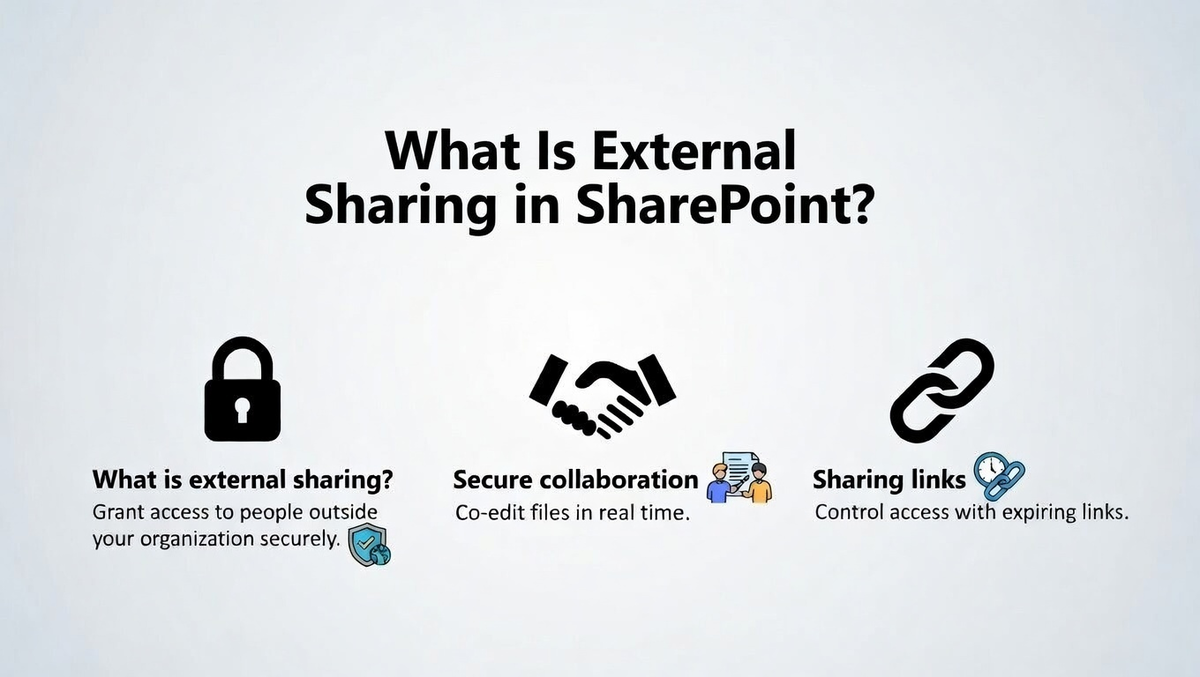
By granting specific SharePoint site permissions, businesses can control what external users can view, edit, or contribute, ensuring that sensitive information is kept secure. For businesses, the ability to share SharePoint sites externally is crucial in today's collaborative work environment.
It enables seamless communication and collaboration with partners, clients, and suppliers, which can enhance productivity and streamline operations. External users can access the site directly, making it easier to collaborate on documents or track project progress without the back-and-forth of email exchanges.
However, there are limitations to external user access in SharePoint compared to internal sharing. External users are subject to stricter authentication requirements, cannot access everything a regular internal user might, and have limited permissions based on the settings configured by the site owner.
Additionally, organizations need to monitor and manage external sharing to ensure compliance and protect sensitive data. This is especially important for businesses that also rely on an On-Premises Intranet environment, where external access policies may differ from cloud-based SharePoint configurations.
SharePoint Site Sharing vs. File/Folder Sharing
When deciding between SharePoint site access for external partners or sharing individual files and folders, businesses need to consider the scope of access required. Site sharing offers broader access, while file/folder sharing provides more granular control.
Both methods are essential for SharePoint collaboration with external users, but each comes with different security and permissions settings that must be configured carefully to ensure the correct access levels.
File and Folder Sharing
File and folder sharing allows external users to access specific documents or folders with either view or edit permissions. It's a simpler approach where users can share links to individual items, ensuring quick collaboration without granting full access to the entire site.
This method is ideal for sharing smaller sets of content without compromising the integrity of the whole SharePoint site.
Site Sharing
Site sharing involves providing external users with access to an entire SharePoint site, which can include multiple documents, lists, and other resources. This method offers greater collaboration opportunities by allowing external users to interact with the site's full range of tools and content.
SharePoint collaboration with external users at the site level allows for more robust interaction and engagement across all elements of the site. Organizations that have built Internal Websites on SharePoint should pay particular attention to permission boundaries when extending site-level access to external users.
Why Site Sharing is More Complex?
Site sharing is more complex due to stricter security measures and authentication protocols. External users must authenticate using a Microsoft account or organizational credentials, ensuring secure access to the site.
Unlike file sharing, where links can be freely distributed, SharePoint sharing options for sites require careful permission configuration to prevent unauthorized access to sensitive information, making it a more involved process.
Setting Up External Sharing in the SharePoint Admin Center
To begin external sharing in SharePoint, it’s essential to first enable the feature in the SharePoint Admin Center. This ensures that your organization can securely share sites, files, and folders with external users.
Administrators can configure external sharing settings by navigating to the Admin Center, where they can define sharing policies, select who can share, and specify the level of access granted to external users.
Enabling External Sharing
In the SharePoint Admin Center, go to Settings > Site Collection Features, and enable external sharing. From here, administrators can choose between Anyone, New and Existing Guests, or Only Existing Guests to control which external users can access content.
Make sure that external sharing is activated at both the site collection and individual site levels to allow seamless collaboration.
Configuring Permissions for External Users
Once external sharing is enabled, administrators can customize SharePoint site permissions for external users. This includes setting permissions for viewing or editing content, inviting external users, and managing guest access. You can also apply security features such as expiration dates for guest links and restrictions on editing and downloading files to ensure safe sharing.
Security Considerations
While enabling external sharing is vital for collaboration, it’s equally important to prioritize security. Administrators should implement multi-factor authentication (MFA) for external users, restrict sharing to specific domains, and monitor sharing activities through audit logs. This ensures that external user access is secure and in compliance with your organization’s data governance policies.
Explore our SharePoint Consulting Services
How to Share a SharePoint Site with External Users?
Sharing a SharePoint site externally allows you to collaborate with external partners, clients, or vendors seamlessly. It's essential to configure SharePoint external sharing options properly to ensure secure access while maintaining data security. Below are the steps for securely sharing a SharePoint site externally, while ensuring that external users have appropriate access levels.
Sharing a Standalone SharePoint Site
To share a standalone SharePoint site, go to the site settings and select Site Permissions. From there, you can choose to invite external users by entering their email addresses. Once invited, external users will receive an email with a link to the site, where they must authenticate to access the content.
You can set permissions such as view, edit, or full control. This method is often used for non-collaborative content sharing, making it ideal for SharePoint site access for external partners.
Sharing a Team Site with Microsoft 365 Group Integration
Sharing a Team Site with Microsoft 365 Group integration allows you to provide external users with access to a collaborative environment. To do this, go to the SharePoint Admin Center and enable external sharing for the team site.
You can invite external users by entering their email addresses, and they will be granted permissions based on their role in the group. This ensures seamless collaboration within the team while protecting your organization's data. For SharePoint external sharing configuration, it's crucial to set group-specific permissions that allow or restrict content visibility.
Inviting External Users
When inviting external users, navigate to the SharePoint site permissions section and click Invite people. Enter the email addresses of the users you wish to invite and assign them appropriate permissions.
External users will receive an email with a link to the site. Upon clicking the link, they will authenticate via their Microsoft account or create one if they don’t have it. It’s essential to regularly monitor external user access and update permissions as necessary to ensure secure SharePoint external sharing. Use the Audit Log to track their activities and ensure compliance with organizational policies.
Authentication Methods for External Users
When sharing a SharePoint site externally, it’s essential to ensure secure access. External users must authenticate before gaining access to your SharePoint site. Depending on their existing accounts and preferences, SharePoint offers several authentication methods to securely manage external access.
Below are the common authentication methods used when sharing SharePoint sites with external users.

Using Microsoft Accounts
When external users have existing Microsoft accounts, they can use their credentials to log into SharePoint. This can include personal Microsoft accounts like Outlook, Xbox, or Hotmail accounts.
Once the user authenticates with their Microsoft credentials, they can access the shared SharePoint site based on the permissions granted. This authentication method is simple and effective for users who already have a Microsoft account, providing easy access with minimal setup.
Using Organizational Accounts
For organizational accounts, users from another company or organization that is part of your trusted network can use their enterprise login credentials to access your SharePoint site. This is ideal for businesses that frequently collaborate with partners or vendors..
Creating New Microsoft Accounts
If external users do not have a Microsoft or organizational account, they can create a new Microsoft account to access SharePoint. When sending an invitation to an external user, they will be given the option to create a Microsoft account. Once created, they can access the shared site and use it just like any other user.
This option allows businesses to invite users who might not have a Microsoft account but need to collaborate securely on a SharePoint site.
Common Authentication Challenges and How to Overcome Them?
Despite the variety of authentication methods, external user authentication can present challenges. Common issues include users not receiving invitation emails, trouble logging in due to account mismatches, or incorrect permission settings.
To overcome these, ensure that users check their spam/junk folders for the invitation, double-check that the correct email addresses are used, and verify the proper SharePoint sharing configuration. Additionally, offering clear instructions on creating and managing Microsoft accounts can help reduce authentication-related issues
3 Best Practices for Effective External Sharing
To ensure secure SharePoint external sharing, it's essential to follow best practices for SharePoint external sharing. This ensures that external users have the necessary access to collaborate, while also maintaining control over sensitive information.
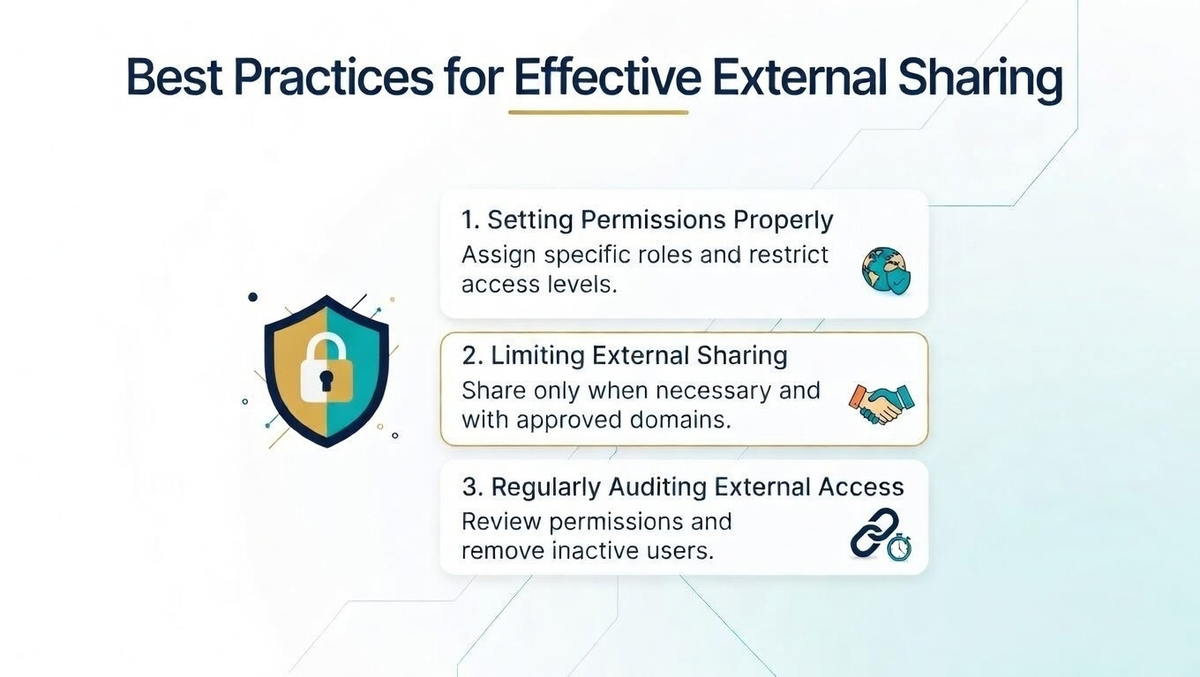
A well-defined SharePoint Strategy & Planning approach is key here organizations that establish clear governance frameworks before enabling external sharing are better equipped to balance collaboration with security. Below are key best practices for granting external access in SharePoint, ensuring both security and efficient collaboration.
1. Setting Permissions Properly
One of the most important aspects of SharePoint sharing permissions for external users is configuring permissions correctly. Always grant the least amount of access necessary for external users to perform their tasks. Ensure external users have the right permissions—view, edit, or full control—depending on their role.
Properly setting permissions limits unnecessary access to sensitive data while still allowing external partners to collaborate effectively.
2. Limiting External Sharing
Limiting external sharing is crucial for maintaining control over your data. Restrict external sharing to specific users or groups, and avoid sharing with anyone unless absolutely necessary. Set up SharePoint sharing permissions for external users to ensure that only those who need access can view or edit content. Additionally, enable sharing expiration dates for external users and disable sharing links that are no longer needed, minimizing the risk of unauthorized access.
3. Regularly Auditing External Access
To ensure continued security, it is essential to regularly audit external access. Monitor external users and their activities within SharePoint by reviewing access logs and permissions. By managing external users in SharePoint Online, administrators can track which external users have access, what they can view or edit, and how often they interact with the content. Regular audits help identify any potential risks and ensure that permissions are up-to-date and aligned with business needs.
Common External Sharing Issues and Solutions
While external sharing in SharePoint provides valuable collaboration opportunities, it can also present several challenges. These issues often stem from incorrect configurations, permission settings, or authentication errors. Below, we discuss some of the common external sharing issues you might encounter and their solutions to ensure smooth SharePoint collaboration with external users.
Invitation Not Received: Common Causes and Fixes
One common issue external users face is not receiving the invitation email. This can happen due to several reasons, such as incorrect email addresses, spam filters, or delays in the system. Ensure that the correct email address is used, and ask external users to check their spam/junk folders.
If the issue persists, resend the invitation or use alternative methods, such as generating a new link for access. Additionally, confirm that SharePoint external sharing configuration is properly set up to allow external invitations.
User Cannot Access the Site: Troubleshooting Permissions and Authentication Issues
If an external user cannot access the site, it’s usually due to misconfigured permissions or authentication errors. First, check that the external user has the correct SharePoint site permissions for the content they need to access.
If authentication is the issue, confirm whether they are using the correct credentials for their Microsoft account or organizational account. Ensuring that authentication protocols are followed and permissions are correctly set will resolve most access issues.
FAQs
How do I enable external sharing in SharePoint?
To enable external sharing in SharePoint, go to the SharePoint Admin Center, navigate to Site Collection Features, and toggle the external sharing setting. Choose between Anyone, New and Existing Guests, or Only Existing Guests to control who can access shared content.
Can external users collaborate on a SharePoint site?
Yes, external users can collaborate on a SharePoint site by being granted appropriate SharePoint site permissions. They can view, edit, or contribute based on the access level provided by the site owner. However, external sharing must be enabled in the SharePoint Admin Center.
What authentication methods are available for external users?
External users can authenticate with Microsoft accounts, organizational accounts, or by creating a new Microsoft account. Each method ensures that only authorized users can access the site securely, following SharePoint external sharing configuration for permissions and access control.
How can I manage permissions for external users in SharePoint?
To manage permissions for external users in SharePoint, navigate to Site Permissions and assign them view, edit, or full control based on their role. Regularly audit external access and adjust permissions to ensure secure and efficient SharePoint collaboration with external users.
Conclusion
How to share a SharePoint site with external users involves a few critical steps to ensure both security and collaboration. By enabling external sharing in the SharePoint Admin Center, setting the correct permissions, and using proper authentication methods, businesses can easily collaborate with external partners while maintaining data security.
It’s important to monitor external access regularly and adhere to best practices to ensure that sensitive information is protected. Centric, with its deep expertise in Microsoft technologies, helps businesses implement secure SharePoint external sharing configurations tailored to their unique needs.
Whether you're collaborating with clients, vendors, or other external partners, leveraging SharePoint collaboration with external users has never been easier or more secure. With Centric’s support, you can ensure seamless access and enhance your team's productivity without compromising security.