





A SharePoint calendar is an essential tool for teams to stay organized and collaborate effectively. It simplifies task management and scheduling by allowing users to track events, deadlines, and meetings in one central place. Whether you're planning project milestones or coordinating team meetings, a SharePoint calendar helps streamline the process.
Centric offers expert services for adding and customizing calendars in SharePoint to suit your organization’s needs.
Learning How to Create a Calendar in SharePoint is straightforward, and you can easily add a calendar to enhance team collaboration. With integrated features, SharePoint calendars make it simple to manage multiple schedules and prevent conflicts.
In this guide, you’ll learn how to add a calendar to SharePoint, customize it to fit your team's needs, and integrate it with other Microsoft 365 tools. We’ll walk you through the setup process, explore advanced features, and provide troubleshooting tips for common issues. By the end, you'll be able to effectively manage and share schedules across your team using SharePoint.
Why Use a Calendar in SharePoint?
A SharePoint calendar is an essential tool for organizing and managing schedules. It simplifies project management and helps teams stay on top of deadlines and events. Using SharePoint document management features alongside your calendar makes it easier to attach and reference project files directly within scheduled events.
With a SharePoint calendar, teams can track SharePoint events, milestones, and important meetings all in one place. Learning how to create a calendar in SharePoint is easy and can significantly improve the way your team collaborates. If a file is accidentally deleted, the SharePoint Recycle Bin ensures you can recover it quickly without losing important event attachments.
SharePoint calendars are customizable and allow you to create a SharePoint group calendar for teams to manage schedules collectively. You can also integrate multiple calendars for different departments or projects into one central view, providing better visibility and organization.
By utilizing SharePoint calendars, teams can improve their overall productivity and reduce the chances of missing important events.
Explore Our SharePoint Consulting Services!
The Benefits of SharePoint Calendars
A SharePoint calendar offers many advantages that help teams stay organized and improve workflow efficiency. Here are some key benefits:
-
Streamline project management and scheduling: A SharePoint calendar allows you to organize events and tasks efficiently, making project management smoother.
-
Enhance team collaboration with shared calendar views: Teams can view and update shared calendars, ensuring everyone is on the same page regarding project deadlines and meetings.
-
Track important events, deadlines, and meetings in one centralized place: All events, deadlines, and meetings are visible and accessible in one location, reducing confusion and increasing efficiency.
-
Integrate with other Microsoft 365 tools like Outlook and Teams: A SharePoint calendar can sync with tools like Outlook and Teams, creating seamless integration for easy access and updates.
How SharePoint Calendars Enhance Team Productivity?
A SharePoint calendar is an effective tool for boosting team productivity by providing better coordination and visibility. Here’s how it can help:
-
Centralized access to schedules for better coordination: With a SharePoint calendar, everyone in the team can access a centralized calendar to better coordinate and manage time-sensitive tasks and events.
-
Prevent scheduling conflicts by seeing everyone’s availability: SharePoint calendars allow you to see your team's availability, preventing double-booking or conflicts when scheduling events.
-
Easily track project milestones and important deadlines: A SharePoint calendar is an ideal tool for monitoring project milestones and key deadlines, ensuring nothing is overlooked and everything stays on track
3 Types of Calendars You Can Create in SharePoint
A SharePoint calendar offers different types of calendars to suit the needs of your team. Whether you need a simple calendar for tracking events or a more advanced solution for team collaboration, SharePoint has you covered.
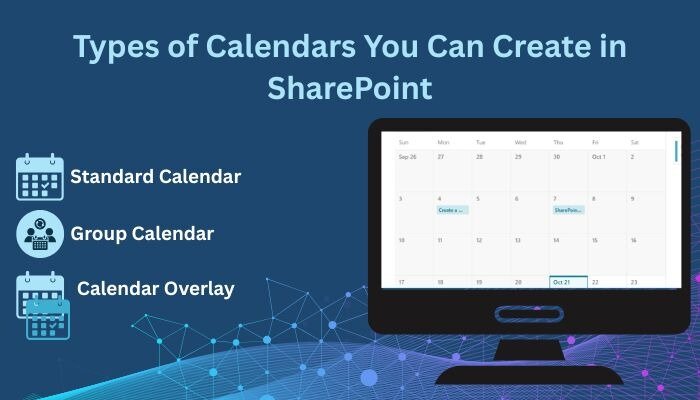
You can create a SharePoint shared calendar or use the SharePoint calendar app for various purposes. Here’s a look at the different types of calendars you can create in SharePoint, along with their features and ideal use cases:
1. Standard Calendar
A standard calendar in SharePoint is the most basic type of calendar and is suitable for tracking events and deadlines.
The SharePoint calendar app allows you to manage events with custom fields and views, such as daily, weekly, or monthly views. It provides an easy way to track upcoming events, meetings, and milestones.
Ideal use cases for a standard calendar: A standard calendar is best for teams or departments that need a simple, centralized calendar for scheduling meetings, tracking project deadlines, or planning events. It’s also great for personal use to track individual tasks and appointments.
2. Group Calendar
A SharePoint shared calendar helps teams coordinate schedules and plan events together.
A group calendar in SharePoint allows multiple users to add and view events in one shared calendar. It provides options for setting permissions, assigning tasks, and integrating with other Microsoft 365 tools like Outlook.
Group calendars are ideal for improving collaboration between teams. They allow team members to view each other’s availability, preventing scheduling conflicts and helping organize team-wide events, deadlines, and meetings.
3. Calendar Overlay
A SharePoint calendar overlay lets you combine multiple calendars into one view, providing a more comprehensive view of events across different projects or teams.
The SharePoint calendar app allows you to overlay different calendars, such as personal and team calendars, into a single view. This feature is useful when you need to manage multiple calendars in one place.
Calendar overlays allow for better coordination by showing multiple calendars side by side. You can also customize the colors and views to distinguish between different types of events, making it easy to see important events at a glance.
Explore Our SharePoint On-Premises Intranet Solutions!
Step-by-Step Guide: How to Create a Calendar in SharePoint
Creating a SharePoint calendar can help you organize events, track project deadlines, and streamline team collaboration. In this guide, we’ll walk you through the process of creating a SharePoint calendar from start to finish.
You’ll learn how to create a SharePoint calendar, customize it, and manage events effectively. Whether you're using it for team meetings or tracking vacation days with a SharePoint vacation calendar, this guide will cover everything you need.
Let’s get started with the steps to create a SharePoint calendar:
Step 1: Accessing SharePoint and Selecting a Site
Before you can create a SharePoint calendar, you need to access your SharePoint site and select the appropriate location for the calendar. You can also learn how to sync SharePoint to File Explorer to quickly manage calendar-related files from your desktop.
-
Open your web browser and go to your SharePoint site. Log in with your credentials if required. If you’re unsure about what is a SharePoint site collection, it’s a top-level container that holds sites, libraries, and calendars, giving you centralized control. Once logged in, navigate to the site where you want to create the calendar.
-
If you're working within a team or department, select the relevant site for collaboration. For personal use, you can create a calendar on your personal SharePoint site. Make sure the site is appropriate for the intended audience (e.g., for a SharePoint vacation calendar, choose a team site).
Step 2: Creating a New Calendar
Now that you have access to the site, it's time to create a SharePoint calendar.
-
From the home page of your SharePoint site, click on the "Site Contents" section. Then, select "Add an app." In the list of available apps, choose the "Calendar" app. In the list of available apps, choose the "Calendar" app. You can also link your SharePoint forms to calendar events to capture RSVPs or approvals for meetings. If you need a custom calendar, you can also create a SharePoint events list instead of using the default calendar.
-
When you create the calendar, you’ll have the option to configure settings such as views (monthly, weekly, daily) and permissions. Don’t forget to perform a SharePoint backup regularly to prevent data loss. Set permissions according to your team's needs.
Step 3: Adding Events to Your Calendar
Once your SharePoint calendar is created, you can start adding events to it.
-
To manually add an event, open your SharePoint calendar, click on the date you want the event to occur, and fill in the event details, such as the event name, time, and location. Click "Save" to add the event.
-
You can use Power Automate to create automated workflows that add events to your calendar. For example, when a task is marked as complete in a task list, Power Automate can automatically add a related event to your SharePoint calendar. This feature helps reduce manual data entry.
Step 4: Customizing Your Calendar View
Customize your SharePoint calendar to fit your team’s needs by adjusting how events are displayed.
-
Go to the calendar settings and choose your preferred view (daily, weekly, or monthly). You can also set a default view for easier navigation.
-
You can categorize your events by color coding, such as using different colors for meetings, deadlines, or personal events. This makes it easier to differentiate between event types at a glance.
Step 5: Setting Permissions and Sharing Your Calendar
Now that your SharePoint calendar is set up, it's time to control who can view and edit it.
-
You can assign different levels of permissions to users, such as "Read," "Contribute," or "Full Control." Combine this with a SharePoint workflow to automate event reminders and approvals efficiently. This helps ensure that only authorized team members can modify or delete events.
-
You can share your calendar with specific team members or even external stakeholders by providing them with a link. You can also grant them viewing or editing rights based on your permissions setup.
By following these steps, you will have a fully functional SharePoint calendar that helps keep your team organized and efficient.
Explore Our SharePoint Document & Content Management Services!
4 Advanced Features for SharePoint Calendars
A SharePoint calendar offers more than just basic scheduling. It comes with advanced features that can help enhance collaboration, streamline event management, and improve team coordination.
From integrating with Outlook to adding custom fields, SharePoint calendars are flexible and can be tailored to meet your needs. Utilizing SharePoint web parts allows you to embed the calendar and other tools on pages for a unified view. Let’s explore some advanced features of SharePoint calendars and how you can make the most of them.

1. Calendar Overlays
A SharePoint calendar overlay allows you to combine multiple calendars into one view. This is useful when you want to see events from different calendars in a single place.
-
To set up an overlay, go to your SharePoint site calendar, and in the calendar settings, select "Calendar Overlay" under the "List Settings." You can then select the calendars you want to overlay and customize how they will appear.
-
By overlaying a group calendar SharePoint, a SharePoint team calendar, and a SharePoint site calendar, you can easily view all events across different teams or projects in one centralized place. This reduces the need to switch between multiple calendars and improves visibility.
2. Integration with Outlook
Integrating your SharePoint calendar with Outlook can save time and improve efficiency by synchronizing events across both platforms.
-
To integrate, you can use the SharePoint calendar web part or directly embed your SharePoint site calendar into Outlook. Once set up, any event created in SharePoint will automatically sync with your Outlook calendar, and vice versa.
-
For teams that rely on Outlook for scheduling, this integration ensures that all events are updated in both platforms, making it easier to manage schedules and reducing the risk of missing important meetings or deadlines.
3. Adding Custom Columns and Fields
Customizing your SharePoint calendar by adding specific columns and fields can help you track additional information about each event.
-
In the calendar settings, select "Create Column" to add custom fields like priority, status, or location. You can define what type of data the column should hold, such as text, dates, or numbers.
-
Adding custom columns helps you categorize events more effectively and track specific details such as project status or event priority. This makes it easier to manage complex schedules and helps teams stay organized.
4. Adding Alerts and Notifications
A SharePoint calendar can also send notifications for upcoming events, changes, or cancellations, helping teams stay on top of their schedules.
-
To set up alerts, go to the SharePoint calendar web part or calendar settings and select "Alert Me." You can customize when and how you want to receive alerts, such as before an event starts or if there’s a change to an event.
-
Alerts can be sent via email, mobile notifications, or even Microsoft Teams messages. This ensures that all team members are notified in real-time, no matter where they are.
By using these advanced features, your SharePoint calendar will become a powerful tool for better coordination and event management, helping your team stay organized and productive.
Troubleshooting Common SharePoint Calendar Issues
Even though SharePoint calendars are highly efficient, there are times when issues may arise. From permissions problems to syncing errors, it's important to know how to resolve common issues to keep your calendar running smoothly. This section will guide you through common SharePoint calendar issues and how to fix them.
1. Permissions Issues and Calendar Visibility
One common problem with SharePoint calendars is when they aren’t visible to some users due to permissions issues. This can prevent team members from viewing or editing events.
-
If you're wondering how to add a calendar to SharePoint site, ensure you have the correct permissions set for users who need access. Go to the calendar settings, and check the permissions under "Manage Access."
Make sure users have at least "Read" or "Contribute" permissions to view or modify calendar events. If permissions are restricted, update them and save changes.
-
If you're having trouble with visibility, make sure that the SharePoint calendar app is added to the site correctly, and users are granted access to the calendar list.
2. Syncing Problems with Outlook or Teams
Another common issue is syncing errors between your SharePoint calendar and Outlook or Teams. This can cause events to appear or disappear unexpectedly, leading to confusion.
-
First, check if the calendar is synced properly in Outlook or Teams. If you’re unsure how to make a SharePoint calendar sync, go to your calendar settings in SharePoint, and check the synchronization settings.
For Outlook, you can try manually updating the sync by going to "Site Settings" > "Connect to Outlook." Ensure the integration is enabled and set to sync. If it’s not syncing correctly, disconnect and reconnect the calendar to fix any broken connections.
-
If you’re still facing issues, consider using the SharePoint calendar web part to directly embed your calendar into your Teams or Outlook interface.
3. Calendar Performance and Loading Issues
If your SharePoint calendar is running slow or not loading properly, this can affect team productivity. Slow calendars often occur due to heavy data or incorrect settings.
-
Try optimizing the calendar by reducing the number of events shown in the default view. You can also break up large calendars into smaller ones to help with performance. Another way to speed up the calendar is by enabling caching or reducing complex customizations.
-
If you're unsure how to create a SharePoint calendar with better performance, make sure you're using simplified views (daily, weekly, or monthly) and avoid using overly complex filters. Regularly archiving old events and cleaning up the calendar can also improve its speed.
By following these troubleshooting steps, you can resolve most issues with your SharePoint calendar and ensure smooth, uninterrupted usage for your team.
Explore Our SharePoint Document Management Services!
Best Practices for Managing SharePoint Calendars
Managing a SharePoint calendar effectively is crucial for team collaboration and project success. By following best practices, you can ensure that your calendar remains organized and efficient, and that your team stays on track. Here are some tips for keeping your SharePoint calendar well-organized and fully optimized for productivity.
Keeping the Calendar Organized
A cluttered calendar can become confusing and reduce its effectiveness. Organizing your SharePoint pages properly ensures that calendars, documents, and announcements are easy to locate.
-
When setting up your SharePoint online calendar, create clear categories for different types of events, such as meetings, deadlines, and personal time. Use consistent naming conventions, such as "Project Name - Deadline" or "Team Meeting - Date," to easily distinguish between event types. This will help team members quickly identify events and stay organized.
-
Over time, your SharePoint online calendar may accumulate old events and outdated information. Regularly cleaning up the calendar by archiving past events and removing irrelevant ones can keep the calendar running smoothly. Set aside time to review and update the calendar periodically to ensure that it remains current and functional.
Tips for Collaborating Using SharePoint Calendars
A SharePoint calendar is not just for tracking events—it can also be a powerful tool for collaboration. Here are some ways to make the most of your calendar for team coordination.
-
You can use your SharePoint calendar to plan team meetings, track project milestones, and schedule events. Whether it's for a single team or multiple departments, SharePoint online calendar helps centralize all team schedules in one place. Use it for project deadlines, regular check-ins, and other events that require cross-team coordination.
-
Take advantage of SharePoint’s collaborative features by linking your calendar to Microsoft Teams SharePoint integration, allowing team members to see calendar events directly in Teams.
You can add comments to calendar events to provide more context or updates, and link tasks from SharePoint task lists to calendar events for easy access to related items. This helps keep everything in one place, reducing the need to switch between different apps.
By following these best practices, you’ll ensure that your SharePoint calendar is organized, up to date, and fully integrated into your team’s workflow, improving communication and overall productivity.
If you’re unsure how to add a calendar to SharePoint page, simply use the SharePoint online calendar web part to embed your calendar directly onto your SharePoint page for easier access and better visibility.
Frequently Asked Questions
How do I create a calendar in SharePoint?
To create a calendar in SharePoint, go to your SharePoint site, click New, and select App or List depending on your SharePoint version. Choose Calendar, give it a name, and add it to your site. Your new calendar will then be ready to schedule events and manage team activities.
Can I add events to a SharePoint calendar?
Yes, you can easily add events to a SharePoint calendar by clicking New Event or + Add within the calendar view. Fill in the event details such as title, date, time, and description. SharePoint calendars also allow recurring events and reminders for better organization.
How do I integrate a SharePoint calendar with Outlook?
You can connect a SharePoint calendar to Outlook by opening the calendar, clicking Connect to Outlook, and following the prompts. This integration allows you to view and manage SharePoint events directly from your Outlook calendar.
Can I customize the appearance of a SharePoint calendar?
Yes, SharePoint calendars can be customized by changing views, colors, and layouts. You can create day, week, or month views and apply color-coded categories for better visual organization. Customizing helps teams quickly identify important events and deadlines.
Is it possible to share a SharePoint calendar with my team?
Absolutely, SharePoint calendars can be shared with team members by setting permissions in the calendar settings. You can control who can view or edit events, making collaboration simple and secure across your organization.
Conclusion
A SharePoint calendar is a powerful tool for improving team productivity and project management. It helps streamline event scheduling, track deadlines, and foster better collaboration within teams. The ability to create custom views, set alerts, and manage permissions makes it an essential resource for teams of all sizes.
For seamless implementation and advanced customization of SharePoint calendars, consider using Centric, as it can assist with your organization’s needs. Centric can help you set up and optimize SharePoint calendars, ensuring that they meet your specific requirements and integrate smoothly with your existing workflows. Understanding How to Create a Calendar in SharePoint empowers your team to fully leverage these capabilities and maintain efficient, well-coordinated schedules.s.