





What is a SharePoint List and how can it enhance your data management processes? A SharePoint List is a powerful tool within the Microsoft ecosystem, allowing businesses to organize, manage, and share data in a way that’s more collaborative and dynamic than traditional spreadsheets.
It provides an efficient method for tracking various kinds of information, such as tasks, contacts, and project milestones, by displaying data in rows and columns.
In this guide, you’ll learn the ins and outs of SharePoint Lists, from understanding their core features to mastering their use in your business workflows. Whether you're just starting with SharePoint or looking to maximize its functionality, this guide will walk you through the process of creating, managing, and customizing SharePoint Lists to suit your needs.
At Centric, we specialize in SharePoint-based solutions that help businesses streamline their data management, and SharePoint Lists are at the heart of these solutions. By the end of this guide, you'll have a clear understanding of how to use SharePoint Lists to improve collaboration and data integrity within your organization.
What is a SharePoint List?
A SharePoint List is a collection of data displayed in rows and columns, similar to a spreadsheet. It allows users to track, manage, and organize information in an easy-to-use, collaborative environment. The data in a SharePoint List is stored within SharePoint sites, making it accessible to multiple users simultaneously, ensuring seamless collaboration and data integrity.
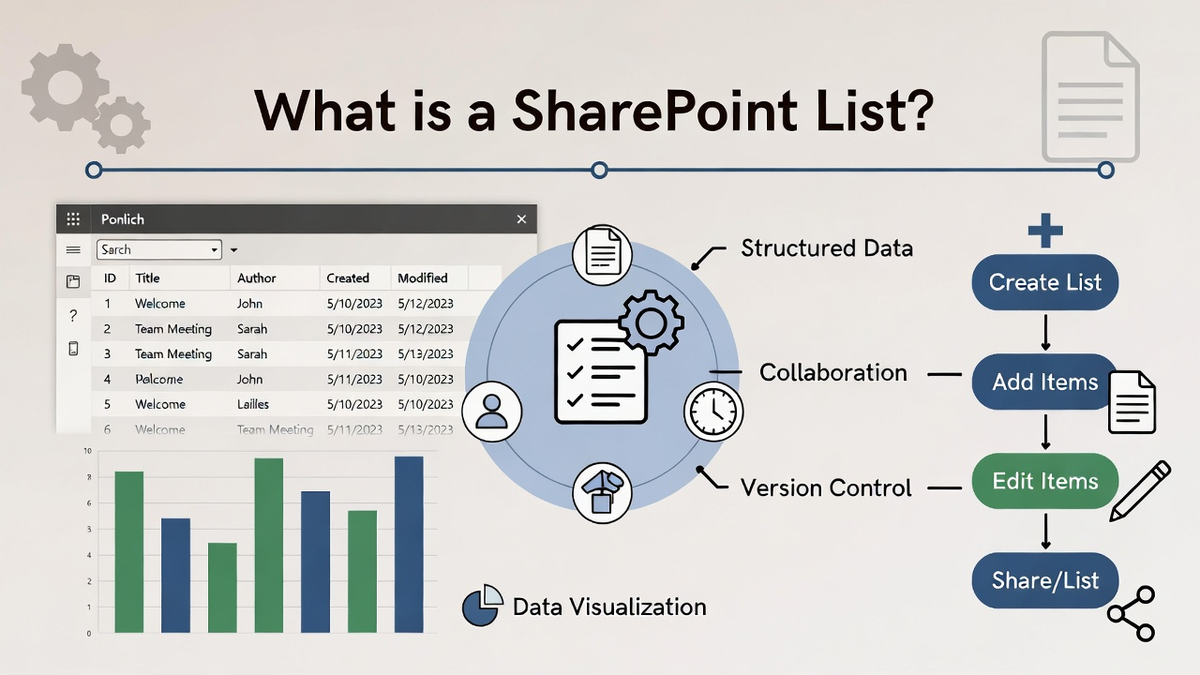
Unlike traditional spreadsheets, a SharePoint List is designed for dynamic, team-based work. While spreadsheets may work well for individual use or static data, SharePoint Lists are better suited for ongoing data management where multiple people need to access, edit, or update information in real-time.
One of the key features that distinguish a SharePoint List from a typical spreadsheet is the ability to create custom workflows, apply permissions for different users, and integrate with other Microsoft tools like Microsoft Teams and Outlook. For businesses looking to go further, exploring SharePoint Advanced Features can unlock even greater capabilities across your Microsoft 365 environment.
For example, SharePoint list examples can include project task tracking, employee directories, or event calendars. You can also take advantage of various SharePoint list templates provided by Microsoft to quickly create lists tailored to specific business needs, like asset management or issue tracking.
These templates can save you time while offering a powerful way to organize and manage your data.
Check Our SharePoint Consulting Services
8 Key Features of SharePoint Lists
SharePoint Lists offer a wide range of features that make them highly versatile for managing and organizing data. These features enhance collaboration, control, and customization, making them ideal for both small teams and large organizations. Below are some of the key features of SharePoint Lists:
1. Customization and Flexibility
SharePoint Lists allow for extensive customization. You can define columns (fields) to store various types of data such as text, numbers, dates, and even files.
Whether you're new to SharePoint Customization or looking to expand your existing setup, this flexibility ensures that SharePoint Lists can cater to a variety of use cases, from project management to inventory tracking.
2. Pre-built Templates
Microsoft offers a variety of SharePoint list templates to help users quickly set up common types of lists such as task management, contacts, and calendars. These templates provide a starting point for users, allowing them to tailor the lists to their specific needs.
Whether you are tracking tasks, customer information, or employee details, SharePoint templates can simplify the process.
3. Versioning and History Tracking
One of the standout features of SharePoint Lists is its versioning capability. You can track changes made to items in a list, view previous versions, and restore data to an earlier point if necessary. This is particularly useful when working on collaborative projects where multiple team members may be editing data simultaneously.
4. Permissions and Access Control
SharePoint Lists offer granular control over permissions. You can assign different levels of access to users, ensuring that sensitive data is protected while still allowing others to collaborate. Permissions can be set at the item level, meaning that only authorized users can modify specific entries.
5. Integration with Microsoft 365
Since SharePoint Lists are part of the Microsoft 365 copilot ecosystem, they easily integrate with other Microsoft tools such as Teams, Outlook, and Power Automate. This integration enhances the functionality of SharePoint Lists, allowing for automatic updates, notifications, and seamless collaboration across multiple platforms.
6. Data Validation
SharePoint Lists include built-in data validation features that ensure the data entered meets specified criteria. This helps to maintain data accuracy and integrity. For example, you can set rules to prevent users from entering incorrect or incomplete information, minimizing errors.
7. Mobile Access
With the Microsoft Lists app, you can access and manage your SharePoint Lists on the go. Whether you're using your desktop or mobile device, SharePoint Lists are accessible anytime, anywhere, making it easy for team members to collaborate in real-time from different locations.
8. Collaboration and Sharing
SharePoint Lists foster collaboration by allowing team members to work together on the same list. Items can be shared with others, and multiple users can simultaneously view or edit data. The ability to leave comments and track changes ensures smooth communication throughout the process.
These key features of SharePoint Lists make them an indispensable tool for businesses looking to streamline their data management processes. Whether you're managing tasks, tracking issues, or maintaining customer records, SharePoint Lists provide the functionality and flexibility required to meet your organization’s needs.
8 Types of SharePoint Lists
SharePoint offers a variety of list types that cater to different data storage and management needs. Here are the most commonly used types:
1. Custom List
A basic, flexible list type that allows you to define columns and data types according to your specific requirements. It is ideal for storing and managing simple data.
2. Document Library
Unlike a traditional list, a document library is optimized for storing and organizing documents and files. It supports versioning, metadata, and document collaboration.
3. Task List
A task list is designed for managing and tracking tasks within a team or project. It includes columns like task names, due dates, priorities, and statuses, making it useful for project management.
4. Calendar
A calendar list allows users to store events and appointments. It integrates with Outlook and provides a visual, calendar-style interface to view and manage dates and events.
5. Contacts List
This type of list is used for storing and organizing contact information such as names, phone numbers, email addresses, and other personal details. It’s often used to manage external or internal contacts.
6. Discussion Board
The discussion board list type is designed for managing and tracking conversations or threaded discussions. It can be used for team communication and knowledge-sharing within SharePoint.
7. Announcement List
An announcement list allows teams to post important updates, news, or alerts in a central location. It’s often used for internal communication within an organization.
8. Survey List
A survey list type enables you to create and distribute surveys. It helps collect feedback and responses from users, making it useful for polls, quizzes, or feedback gathering.
Each of these list types is optimized for specific data management tasks, allowing you to tailor SharePoint to meet your organization’s needs.
SharePoint Lists vs. SharePoint Libraries
When working within SharePoint, it's important to understand the differences between SharePoint List vs Library. While both are used to store and manage data, they serve different purposes and have distinct functionalities. Here, we’ll break down the key differences to help you determine which option is best for your project needs.
|
Feature |
SharePoint List |
SharePoint Library |
|
Versioning |
Supports only major versioning (tracks published versions). |
Supports both major and minor versions (tracks drafts and revisions). |
|
Best for |
Data-driven lists like tasks, issues, or contacts. |
Document-heavy projects requiring multiple revisions before final publication. |
|
Check-In/Check-Out |
Does not have check-in/check-out features (ideal for collaborative data editing). |
Includes check-in/check-out functionality for managing documents (prevents conflicts). |
|
Document Handling |
Not ideal for storing files, better suited for structured data like text, dates, or numbers. |
Designed for managing and storing documents (Word, PDF, Excel, etc.). |
|
Collaborative Features |
Allows real-time collaboration and simultaneous editing. |
Allows only one person to edit a document at a time (check-out required). |
Transform Your Document Management with SharePoint
When to Use a SharePoint List vs a SharePoint Library in Your Projects?
The decision to use a SharePoint List or a SharePoint Library depends largely on your project needs and the type of data you're managing. Both tools offer unique functionalities that can be leveraged to streamline business processes. Here's when to use each:
SharePoint List
SharePoint Lists are ideal for managing non-document data. Use SharePoint list templates for business use like task management, contact tracking, or issue tracking. They are perfect for keeping track of structured information that needs to be shared and updated in real-time by multiple users.
Lists are great for collaborative environments where data is regularly updated but not necessarily tied to documents.
SharePoint Library
If your project revolves around managing and storing documents, then SharePoint Libraries are the better option. Whether you’re dealing with internal documents, presentations, or reports, libraries provide advanced document management features such as versioning, metadata, and check-in/check-out functionality.
Use SharePoint libraries when your team needs to collaborate on files and ensure proper version control.
Step-by-Step Guide to Creating a SharePoint List
Creating a SharePoint List is a straightforward process, and it can be done directly within Microsoft 365. SharePoint Lists are highly customizable, so understanding how to create a SharePoint list is essential for organizing and tracking your business data.

Whether you're managing tasks, tracking inventory, or gathering customer feedback, SharePoint Lists provide the flexibility to meet your business needs. Here’s a step-by-step guide to creating a SharePoint List and exploring SharePoint list customization options to enhance its functionality.
Access SharePoint
Go to Microsoft 365 and open the SharePoint app. On the SharePoint homepage, click "New" and select "List" to start creating a list.
Add Columns
After creating your list, click "Add Column" to add fields like text, numbers, dates, or hyperlinks based on your needs.
Enter Data
Click "+ New" to add items (records) to your list.
Create a Custom List
For a tailored list, start with a blank one and customize it by defining columns based on your business needs, like tracking inventory or managing tasks.
Customizing SharePoint Lists
Once you've created your SharePoint List, you can further customize it to meet your specific business needs. SharePoint Lists are highly flexible, allowing you to adjust columns, item views, and even permissions. Here’s how you can customize your lists to enhance functionality.

Adding New Columns and Items
One of the most important aspects of customizing SharePoint Lists is the ability to add new columns and items as needed. SharePoint provides a variety of column types to ensure that your data is stored in the most appropriate format.
You can add columns for text, numbers, dates, people, and even images. After defining your columns, you can also create custom views to display data in a more organized and actionable way.
How to Modify a SharePoint List to Fit Your Business Needs?
You can modify your SharePoint List to fit your unique business processes by adding new columns, changing the column types, or adjusting the permissions. For example, you can set up validation rules to ensure that the data entered is accurate, or add calculated columns to automatically compute values based on other data in the list.
Modifying your list ensures it works for your specific business use case, whether it’s tracking customer service requests or managing a sales pipeline.
Working with Templates
SharePoint also offers a variety of pre-built SharePoint list templates for business use, allowing you to quickly get started with common data management needs. These templates are designed for a range of business functions, from project management to employee onboarding.
Selecting and Modifying Pre-built SharePoint List Templates for Specific Uses
When you create a SharePoint List, you can choose from a variety of templates such as a task list, calendar, or contact list.
Once you've selected a template, you can modify it by adding or removing columns, adjusting views, and setting up permissions based on your needs. If you find that the template doesn't fully suit your requirements, you can customize it further to match your business processes.
Managing and Organizing SharePoint Lists
Managing and organizing SharePoint Lists involves editing, modifying, and configuring settings to ensure that your data is organized efficiently. Proper management allows you to easily track data, collaborate with teams, and ensure the information is up-to-date and accurate. Below, we’ll discuss how to edit, modify, and manage SharePoint Lists effectively.
How to Edit and Modify SharePoint Lists?
Editing and modifying a SharePoint List allows you to update data as your business needs evolve. You can add or remove columns, edit existing data, reorder columns, and adjust views to better reflect the information your team needs. This flexibility ensures your list is always aligned with your goals.
Advanced Settings and Permissions
Advanced settings allow you to configure versioning, track changes, and manage approval workflows. SharePoint list permissions let you control who can view, edit, or delete list items at the list, item, or column level. These settings help ensure data integrity, secure sensitive information, and enable efficient collaboration across teams.
7 Best Practices for Using SharePoint Lists
Using SharePoint Lists effectively requires following best practices to ensure optimal organization, collaboration, and security. By adhering to these guidelines, you can maximize the value of SharePoint Lists in your business operations.
1. Organize Data Effectively
Ensure that your SharePoint Lists are structured logically with well-defined columns and appropriate data types. Use columns that align with the type of information you are tracking. For example, use "Date" columns for tracking deadlines or "Choice" columns for status indicators. Well-organized data improves usability and reduces errors.
2. Use Views to Filter Data
Custom SharePoint list views help present data in a way that is most relevant to your users. You can create views that filter out completed tasks, sort data by priority, or display only items that need attention. Tailored views enhance productivity and make it easier for teams to access the information they need.
3. Implement Permissions and Access Controls
Set appropriate SharePoint list permissions to control access to sensitive data. Ensure that only authorized users can edit or delete items, and restrict access to specific columns or list items when necessary. This maintains data integrity and prevents unauthorized changes to critical information.
4. Enable Versioning
Enable versioning to track changes to list items over time. This is especially useful in collaborative environments, as it allows users to see previous versions, restore earlier data, and ensure that changes are documented. Versioning also helps maintain accountability within the team.
5. Use Templates for Consistency
Leverage SharePoint list templates for business use when creating common lists such as tasks, events, or contacts. Templates ensure consistency across lists and save time when setting up new lists. SharePoint customization templates based on your specific business needs helps streamline data management.
6. Automate Processes with Workflows
Integrate SharePoint Lists with Power Automate to create workflows that automate routine tasks such as notifications, approvals, and task assignments. This reduces manual intervention, improves efficiency, and ensures that important actions are completed on time.
7. Regularly Review and Clean Up Lists
Periodically review and clean up your SharePoint Lists to remove outdated or irrelevant data. Archiving old items and removing unnecessary columns keeps your lists clutter-free and ensures that only valuable data is stored, improving overall performance and user experience.
By following these best practices, you can make the most out of SharePoint Lists, ensuring they are secure, organized, and optimized for your team’s needs.
7 Troubleshooting Common Issues with SharePoint Lists
Despite being a powerful tool, SharePoint Lists can sometimes encounter issues that may hinder their performance or usability. Understanding how to troubleshoot common problems can help resolve these issues quickly and ensure smooth operations.
For ongoing guidance, working with a team focused on SharePoint Support Optimization can help prevent recurring issues before they impact productivity. Below are some common problems users face with SharePoint Lists and how to address them.
1. Permissions Issues
One of the most common issues with SharePoint Lists is incorrect or insufficient permissions, which can prevent users from accessing or editing list items.
-
Solution: Check the list’s permissions settings to ensure the correct access levels are assigned. Review individual user and group permissions, and ensure that list and item-level permissions are properly configured to allow necessary actions like viewing or editing.
2. Slow Performance or Large Lists
As SharePoint Lists grow in size, they may become slow to load or cause performance issues. This can happen when the list contains thousands of items or complex columns.
-
Solution: Limit the number of items in a list view using filters or indexed columns. Regularly archive old data and use views that only show relevant, up-to-date items. Index columns that are frequently filtered or sorted to speed up the process.
3. Data Validation Errors
Incorrect data entered into a SharePoint List can sometimes lead to validation errors, especially when the wrong data type is entered into a column (e.g., entering text into a numeric column).
-
Solution: Set up column validation rules and enforce correct data entry. You can also provide users with instructions or dropdown options (Choice column type) to minimize errors and ensure that data meets your standards.
4. Missing or Incorrect Columns
Users may encounter issues when they can’t find specific columns, or the data displayed in the columns is incorrect. This often happens after modifying the list's structure or importing data from other sources.
-
Solution: Verify the list’s column settings in the List Settings. Check that all required columns are included and properly configured. If necessary, modify the column types or re-import the data to ensure it aligns with the correct format.
5. Versioning Problems
Versioning in SharePoint Lists can sometimes cause issues, such as not showing the correct version of an item or users being unable to restore previous versions.
-
Solution: Ensure versioning is enabled in the list settings. Review the versioning settings to determine whether major or minor versions should be kept. If problems persist, check if there are any conflicts with list settings or workflows that might be affecting version control.
6. List Items Not Appearing in Views
Sometimes, list items fail to appear in custom views due to issues with filters, permissions, or incorrect column settings.
-
Solution: Verify that the filters and sort settings are properly configured. Ensure the view is not accidentally filtering out the items you need. Check that permissions are correctly set to allow users to view the list items.
7. Failed Workflows or Automations
When SharePoint Lists are integrated with workflows or automations (e.g., using Power Automate), these processes may fail due to incorrect settings or permissions.
-
Solution: Review the workflow or automation settings to ensure they are configured properly. Check permissions to make sure that the workflow has the necessary rights to perform the tasks, and verify that the conditions for triggering the workflow are correctly set.
By addressing these common troubleshooting issues, you can maintain the efficiency of SharePoint Lists, ensuring smooth collaboration and data management across your team. Regularly monitoring list performance, permissions, and settings can prevent many of these issues from arising in the first place.
FAQs
What is a SharePoint List and how does it work?
A SharePoint List is a structured data collection tool in SharePoint that stores information in rows and columns. It allows users to track, manage, and share data with features like version control, permissions, and integration with workflows for better collaboration.
How do I create a SharePoint List from scratch?
To create a SharePoint List, go to your SharePoint site, click "New," then select "List." You can either use a pre-built SharePoint list template for business use or start with a blank list, adding custom columns and views based on your needs.
What are the benefits of using SharePoint Lists for document management?
SharePoint Lists are useful for tracking document metadata and linking files but are not ideal for full document management. For advanced features like versioning, check-in/check-out, and metadata, SharePoint Libraries are a better option for managing documents in depth.
How do I customize a SharePoint List to fit my business needs?
SharePoint list customization allows you to add columns, set validation rules, and create tailored views. You can modify SharePoint List templates for business use or build a list from scratch. Integrate with Power Automate for automated workflows and data management.
Conclusion
Understanding what is a SharePoint list is crucial for businesses seeking a flexible and collaborative way to manage data. A SharePoint List provides a structured approach to tracking tasks, contacts, and other data, with robust features like versioning, permissions, and customizable views.
It is an essential tool for teams that need to work together in real-time while maintaining control over data. Whether you’re using SharePoint list templates for business use or creating custom lists from scratch, this tool offers the flexibility needed to tailor data management to your specific needs.
Centric specializes in implementing SharePoint-based solutions to help businesses optimize collaboration and data management. By effectively utilizing SharePoint Lists, organizations can improve workflows and ensure data integrity, enhancing overall productivity and team efficiency. SharePoint Lists are a powerful asset in any modern business environment.
Ready to optimize your data management with SharePoint? Contact Centric today to learn how we can help streamline your business processes!